
Creating a Recommendation

The Certification Portal (formerly Education Portal) is the new recommendation system used to manage certifications to lead NAMI Signature Programming for a NAMI State Organization or NAMI Affiliate. This article will give a walkthrough of how to create a recommendation in the Certification Portal, and how to manage them once submitted as the Referrer who submits and manages them.
In this article
Certification Portal Overview and Additional Certification Portal Resources
A Referrer is someone who submits a recommendation for a Candidate's training – this is how you ask someone to complete the requirements and training to earn a certification at your organization. Referrers are usually NAMI Alliance staff members or leaders with certain permissions. A Candidate is the person being recommended for a training or invited to be associated with an organization.
When you log into the Certification Portal, you will land on the Recommendations page. Click here for a quick overview of the page in addition to how to navigate the rest of the portal. Certain Alliance staff that have been granted specific permissions can view the recommendations at their Affiliate/State Organization. Referrers have an additional permission that lets them create recommendations. This was historically done in the Education Portal (Ed Portal). Click here to learn about NAMI’s transition from the Ed Portal to the Certification Portal. Certification Portal also has a new function for sending Invites. Click here to review when to send an Invite to a new person joining your organization or a recommendation.
When will Ed Portal go away?
Everything in Ed Portal is being replaced. We will work with affiliates and state organizations to ensure a smooth transition. While dates may change based on the field’s needs, currently the two most important dates are as follows:
- On November 16, 2026 new recommendations will need to be made in the Certification Portal
- On January 12, 2027 Ed Portal will no longer be available. Affiliates or state organizations needing help to access information in Ed Portal after that date will need to email success@nami.org.
Creating a new Recommendation

-
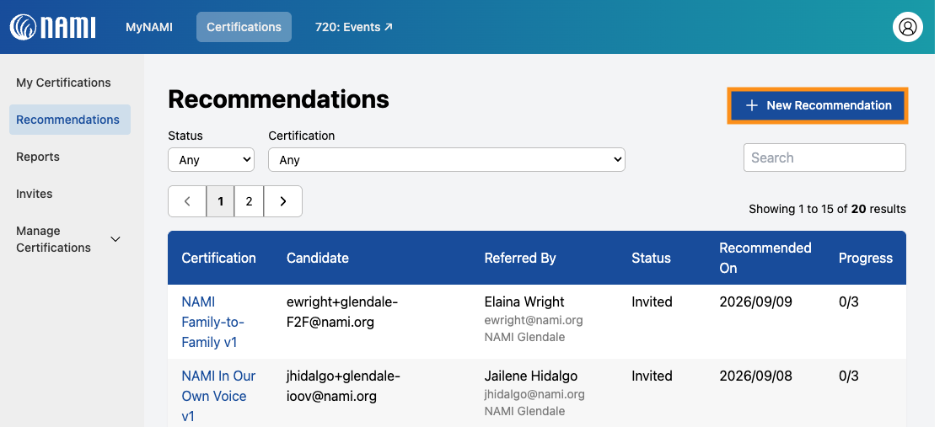
From the Recommendations page, click + New Recommendation at the top right of the list (orange box).
- Select the sponsor organization: Type your organization's name in the search box to narrow the list, select yours, and click Continue.

State Organizations can't be selected as the sponsor for program leader recommendations (program leader certification for In Your Own Voice, Ending the Silence etc.). The Certification Portal will not allow you to continue with the recommendation by listing certifications as unavailable in the next step. Only state-level certifications will allow for a non-affiliate sponsor (state trainer for any program).
Selecting an alternative:
- Select an affiliate your State Organization has authority over as the sponsor OR
- Select your state's Virtual Affiliate as the sponsor
- Select the certification
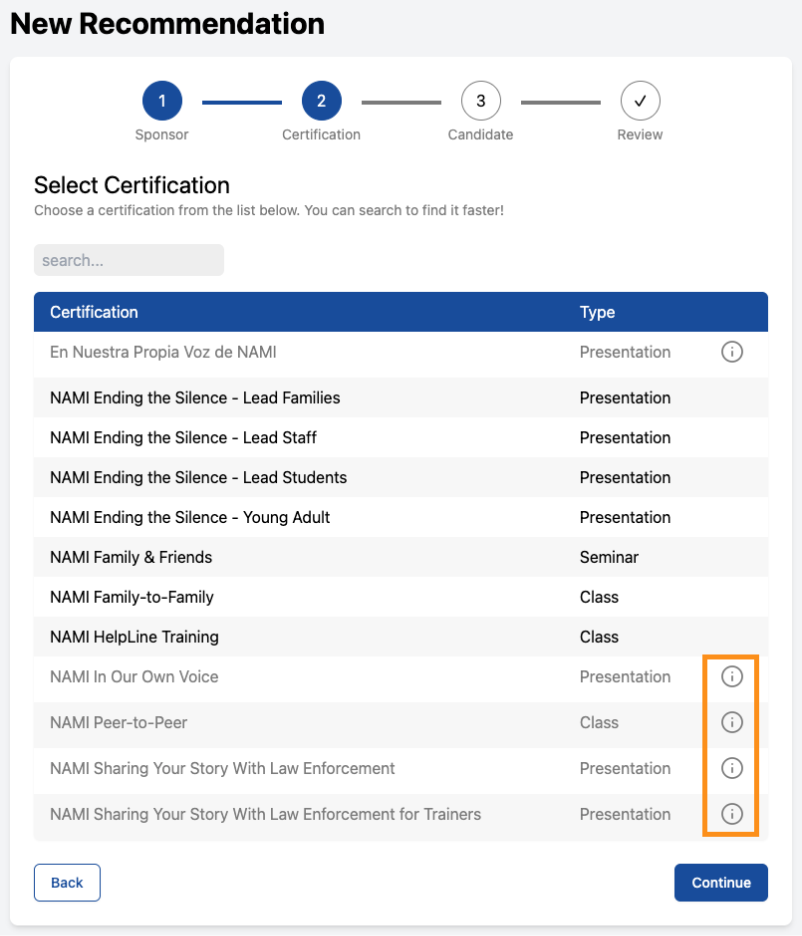
Once your organization (sponsor for the certification) is chosen, the portal will figure out what certifications your organization is allowed to host because they have been granted permission by NAMI National and/or a NAMI State Organization. In the image below:
- Programs in black indicate that your affiliate/state organization has that program approved to sponsor recommendations.
- Programs in grey indicate that your affiliate/state organization does not have that program approved to sponsor recommendations. You can also click on the info icon next to the program that will explain the specific circumstances and who to reach out to for more information (orange box),

- Choose the candidate
This step opens with one question: I want to recommend a candidate who is / is not already associated with [your sponsor]. Click whichever applies (orange box). If you are unsure which choice applies to your candidate, you can check if they are already associated before going back to this page.

|
Candidate Selection Option |
What this means |
|
Your candidate “is” already associated with your organization |
Your candidate already has a contact record and an affiliation record with your organization, so they will show up in a roster of affiliated people. Note: Candidates on this list are not guaranteed to already have a myNAMI account login. If they do not have a login, the system will create one for them when the recommendation is created. |
|
Your candidate “is not” already associated with your organization |
Your candidate may or may not already have a myNAMI account They don’t have an affiliation record with your organization, so they wouldn't show up in a roster of affiliated people |
If you choose: Your candidate “is” already associated with your organization
You will see the account information of all those already affiliated with that sponsor. This is the list of people who have an affiliation record with your organization, and it is the same information as the “My Community - All Contacts” tab in NAMI 360. Use the search box to find someone quickly.
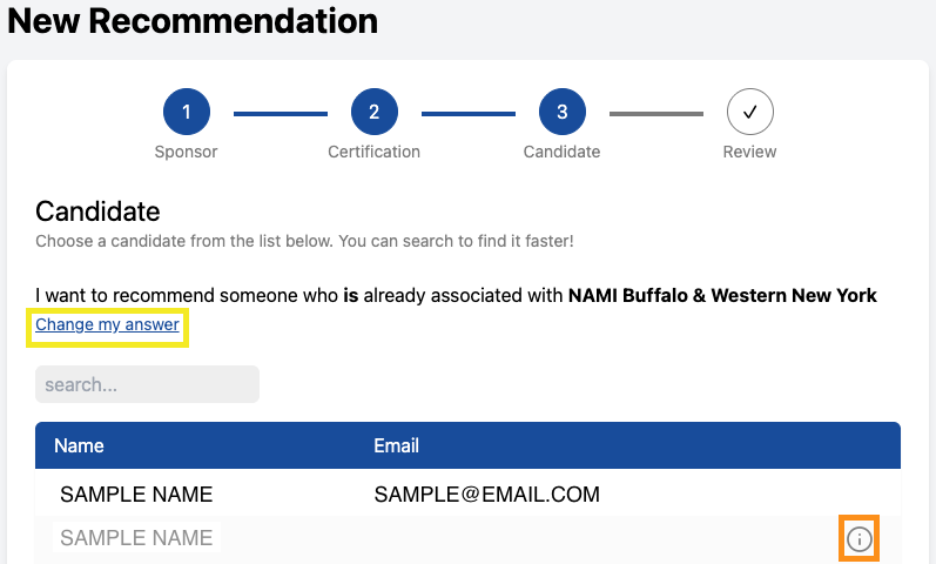

Because of how people’s contact information was historically added in NAMI 360, users may or may not have an email associated with their name or a myNAMI account if they are already listed. They may also have multiple versions of themselves in the NAMI database.
|
Candidates listed in your Organization’s contact roster |
What this means |
What to do next |
|
People listed in black |
They have a myNAMI account linked with their email and an affiliation record with your organization |
Click on their name and continue to the next recommendation step |
|
People listed in gray with a ⓘ icon instead of an email address |
Without an email, the portal can't automatically send the recommendation. This may mean the candidate does not have a myNAMI account with an affiliation record linked to your organization |
Click “Change my answer” (yellow box in image above) to take you back to the previous page in the recommendation. Enter the candidate’s email manually. This invites them to create an account and/or become affiliated with your organization within the process of completing a recommendation |
NAMI 360 admins no longer have to add a new “contact record” manually in NAMI 360 because an invite someone accepts does this for you. This article shows how admins were previously instructed to create an account for new members joining their organization. You can add new people to be affiliated with your organization by sending them an invite if they will not be training for certifications or just start by sending them recommendation if they also want to be trained to lead NAMI Signature Programs.
If you choose: Your candidate “is not” already associated with your organization
You will get a text box to manually type in an email address, then click Continue.

When creating new recommendations for candidates, please make sure you are using the candidates' preferred emails and that they are spelled correctly, or issues can occur down the line. Misspelled emails will not be sent to anyone.
Candidates will also get a change to accept the recommendation to a different email if they desire.
- Review, then submit
The last step lists every field you selected. Each row has an "Edit" link that takes you back to that step. If everything looks right, click the green Submit button.

If you click Edit on any step, it will clear the selections made after it
- The choices build on each other. Expect to re-select everything downstream of whatever you changed.
- Example: if you go back and change the sponsor, your certification selection is emptied immediately because it's a different organization that may not have the same certification approvals.
Submitting takes a moment.
- The system will check whether that email already has a myNAMI account and whether the person is eligible to be recommended for this certification.
- Several different messages can come back at this point, so give it a few seconds rather than clicking again.
Got a message instead of a new recommendation?
This will change your next step and make the submit button change as well (Send Invite, Create Record, Go to Tool). Click here to review how to troubleshoot recommendation errors and what each message means.
What Happens Next for You and Your Candidate
When you successfully submit the recommendation
- It will appear as the first entry at the top of the Recommendations page
- The status will start as “Invited”
- The progress will start at zero with no requirements completed
- You will get a confirmation email, and the candidate will also get an email to accept or reject the recommendation.
Recommendation Details Guide
Click the certification name for the specific recommendation you want to review. This will open Recommendation Details. A banner confirms “The candidate has been invited to accept the recommendation.”

Two actions are available to you as the Referrer who created this recommendation:
|
Action |
What it does |
When you can use it |
|
Re-send candidate invite |
Sends the invitation email to the candidate again. This does not create a new recommendation |
Only while the recommendation is still at the invite stage and the candidate tells you they never saw the "New Recommendation" email |
|
Cancel recommendation |
Ends the recommendation |
Any time |
Then, you'll find the same information summarized in the Recommendation Page: who the candidate is, who referred them (with the sponsor organization), and a description of the certification.
Progress and requirements
Next, you will see the dashboard card that shows the certification and its version, overall progress, status, the start date, and last activity, which changes when the candidate accepts the recommendation or completes a requirement.
You will also see the list of each requirement a candidate needs to successfully complete to earn a certification. Every program has its own requirements and, therefore, its own number of steps, so language will vary. Requirements for the candidate to complete can include eligibility requirements, the fidelity agreement, the training course in the Learning Portal and live training.

Note: Ending the Silence Requirements
A completed certification for ETS Lead Students is required before candidates are eligible to work towards a certification in ETS Young Adults, Lead Staff, Lead Families. If the candidate doesn't have the ETS Lead Student certification, then the remaining requirements will be locked for all other ETS recommendations.

If you recommended a candidate for any ETS course before they received the ETS Lead Students certification records, your options are:
- Create a new recommendation for the candidate to work through the ETS Lead Students certification. Once certified, they may return to complete the other ETS Certifications
- Reach out to success@nami.org if you believe the candidate did complete this certification but may be missing the necessary records for it

Live Training
If the certification requires a live training, you will update the statuses for this requirement as they happen to move the progress along and eventually mark it as complete. Click here to review how to manage live training updates in a recommendation.
Stalled progress and locked next steps
There may be scenarios where a Candidate or Referrer completes a requirement but isn't able to trigger it's completion in the Certification Portal. Please reach out to succes@nami.org with confirmation of its completion so they can "force complete" progress on your behalf and unlock the next step.
Recommendation statuses
A recommendation moves through a handful of states, which will show up as the status update on the Recommendation page summary and the progress bar within a recommendation’s details.

|
Status |
Means |
|
Invited |
Recommendation submitted by Referrer The candidate has been emailed and hasn't accepted yet. This is the only stage where the Referrer can re-send the recommendation invitation |
|
Active |
The candidate accepted and is working through the requirements Their account and affiliation record with your organization have been confirmed |
|
Complete |
Every requirement is done; the certification has been issued nationally and at the sponsoring organization |
|
Merged |
The candidate used a different email address than the one a Referrer used in their recommendation and it turns out candidate is already certified through that other account. NAMI National/Certification Portal automatically handles the backend updates needed to resolve the duplicate or conflicting recommendation. You do not need to do anything. The system will connect the recommendation to the candidate’s existing account, add or update the organization’s certification record as needed, and mark the recommendation as merged. The recommendation is essentially completed. You’ll receive a “Recommendation Merged” email confirming this and can move forward with the candidate who is certified to conduct the program at your organization |
|
Rejected |
The candidate declined the recommendation |
|
Cancelled |
The Referrer ended this recommendation, and the candidate may no longer access it Cancelling is available at any stage |
| Expired |
The candidate spent 6 months with no activity for this recommendation This can happen at any status or amount of progress, more information in a later section of this article |
If you want to know information about all recommendations, not just a single one, you can review how many were created and are in progress or how many have been completed across your organization over any time period. Click here to review how to use the recommendation reports feature in the portal.
Recommendation important dates
| Dates listed | What this means |
| Started On | When a recommendation was submitted by referrer |
| Last Activity |
The last time the candidate does a new task (accepts/rejects an invite, completes requirement). If the candidate never responds to the recommendation invitation, they will have no activity. What the countdown to recommendation expiration after 6 months is based on |
| Completed On |
Only appears when the candidate completes the last requirement, which can include when the Referrer marks the completion of a live training When the certification is issued |
Communications sent in the recommendation process
There will be email updates sent to both Referrer and Candidate for the following:
- New recommendation submitted/sent out
- Recommendation acceptance or rejection
- Recommendation progress at each step including live training status updates
- Recommendation completed
Submitting a recommendation sends the first email to you as the Referrer via the email address associated with your myNAMI account and one to Candidate via whatever address you entered manually or what was already on file for them.
If a scenario necessitates that NAMI National "force comlpetes" a requirement on behalf of a Candidate or Referrer, an email update for this requirement will not be sent to anyone.
The candidate's first email
There are a few types of "New Recommendation" emails the candidate can receive based on a few factors:
| Condition | The candidate will be prompted to | Why? |
| When creating the recommendation, the referrer used an email that is not already associated with a myNAMI login |
Accept the recommendation invitation with the email the Referrer used OR with a different preferred email. See next table for more details Or Reject it |
When the candidate has multiple emails but a preference for which they want to be associated with their myNAMI account. This can be different from the email they communicate with you. This prevents duplicate account confusion and sets up the preferred email as the basis for working with NAMI. Affiliation record will be created for this account. |
| When creating the recommendation, the referrer used an email that is already associated with a myNAMI login | Accept or Reject the recommendation invitation | They already have a myNAMI account with an affiliation for your org |
Below is a version of the first email that’s sent to the candidate if they don’t have a myNAMI account with the email you entered:

While not all candidates will get the option to change their email, here is what they are prompted with
|
Link provided |
What it does |
|
"Login and accept this recommendation as … " |
If they do have a myNAMI account: link prompts them to log in, then directs them to their recommendation details page. If they don’t have a myNAMI Account: A myNAMI account is created for them automatically with their email as their the username. They are prompted to log in with the credentials listed in the email and reset the temporary password, before directing them to their recommendation details page. |
|
Accept this recommendation with another email! |
Opens acceptance page but lets the candidate accept under a different email address. Then their next steps are the same as what is listed above. |
Recommendation expiration and certification versions
Recommendations expire after 6 months with no activity at any status or amount of progress.
- Any activity resets the 6-month clock. For example, if a candidate is inactive for 3 months and then completes a requirement, they get another 6 months from that date.
- The Last Activity date on the recommendation progress card shows when the 6-month countdown started.
- Once a recommendation expires, the candidate must be recommended again to continue working toward certification.
Certification Version changes
Certification requirements may periodically change. This can be due to change in language for eligibility and agreement requirements, or a training has been updated.
- A new certification version does not erase progress.
- Completed requirements that overlap between versions remain complete.
- Candidates only need to complete new requirements introduced in the latest version.