Completing a Recommendation as a Candidate
In this article, you will see how the recommendation process works for candidates: signing into the Certification Portal, working down the list of requirements, and the certification that appears at the end.
In this Article
Navigating the Platform
When you are recommended for a certification, you will receive an email with the subject “Recommendation Accepted!” Click here to review how to log into the Certification Portal.
Once you enter the portal, you will first see your Recommendations page. This is where the recommendations assigned to you can be found.
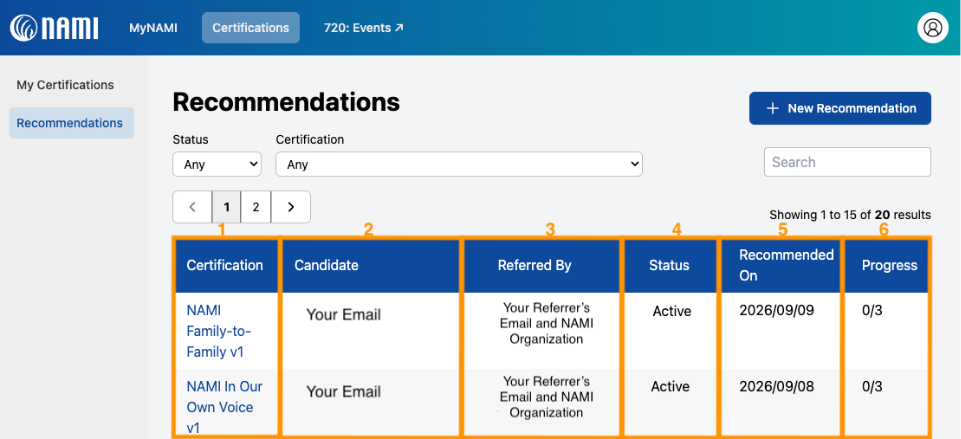
Each row is a different recommendation where you will see the following:
- Certification name – the program you are going to complete training for
- Candidate – your information
- You will initially be referred to by your email. Click here to learn how to update your name in your account.
- Referred by – the staff member who is your main contact for this certification’s training
- Status – The overall status of your recommendation: Invited, Accepted, Rejected, Completed
- Recommended On – Date recommendation was sent
- Progress – Current progress in completing the requirements for your certification
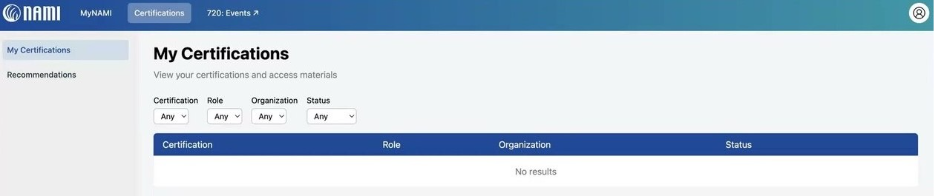
The other page you have access to as a candidate is the My Certifications page where you can see all the certifications you have completed. If you have not yet completed any certifications, this will initially be empty. If you do have previous certifications, click here to review how to navigate your certifications.
Recommendation Details
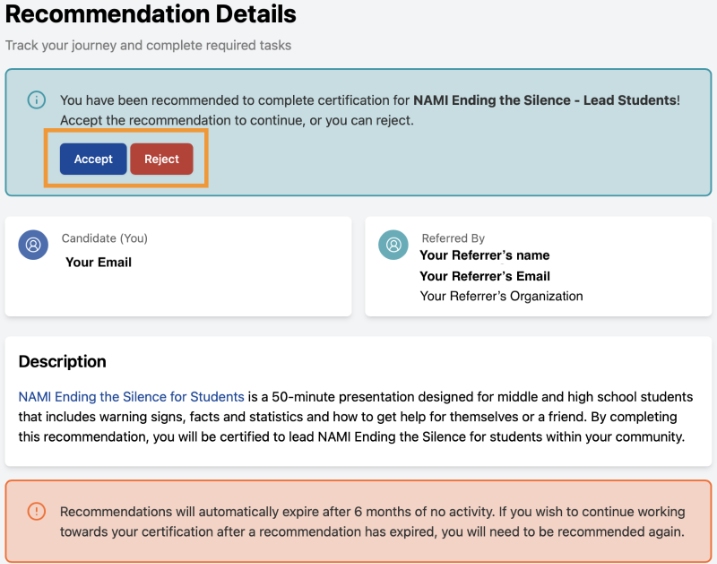
On the Recommendations page, click on the certification title to open up the recommendation details. Here you will find where to accept or reject a recommendation, a description of the course, and a reminder that if you stop progressing through the requirements, the recommendation will expire after 6 months of no activity or progress. If a recommendation is expired for inactivity, your account will still be intact and you will still be able to review your past progress on the recommendation. If a recommendation expires and you wish to continue with training, you can reach out to your referrer to ask to be recommended again.
Next you will see the status information associated with this recommendation. It shows which stage of the recommendation process you are in: Invited, Active, or Complete. You can also see an activity log with the dates of your progress.
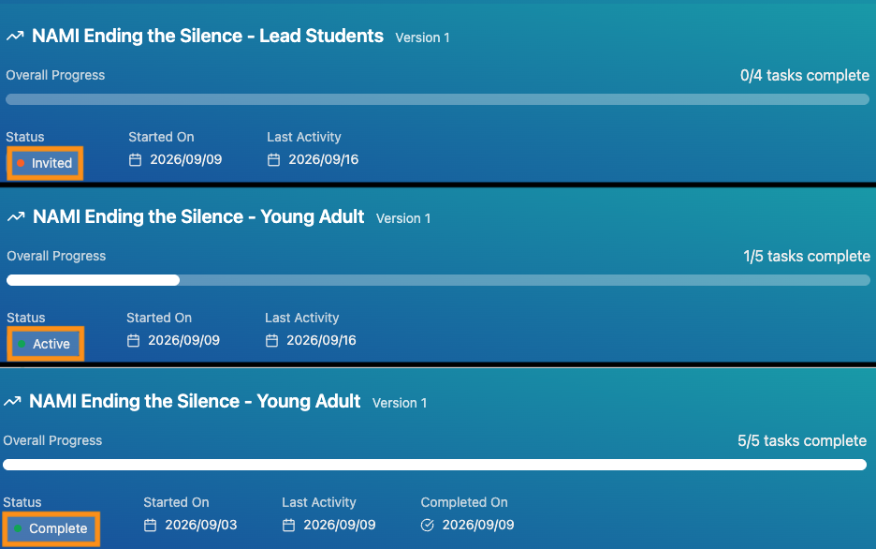
- Invited means you have not accepted the invitation yet.
- Active means you accepted the invitation and have begun working through the requirements.
- Compete means every requirement is done, and your certification has been issued nationally and at the sponsoring organization.
When you accept the recommendation, your progress begins. The "tasks complete" bar on the right-hand side, shows how many of the requirements you have done to complete the certification.
Next on the page are the details of your recommendation's requirements. The number and types of requirements vary by certification. The Certification Portal will prompt you to click through the steps to get started on your progress once your invitation has been accepted.
Some courses will require a signed Fidelity Agreement as the first step.
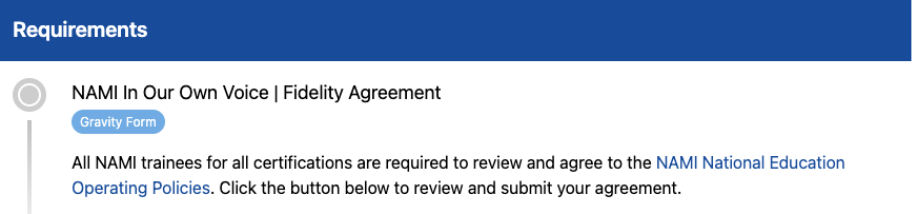
Other courses will allow you to begin without a Fidelity Agreement.
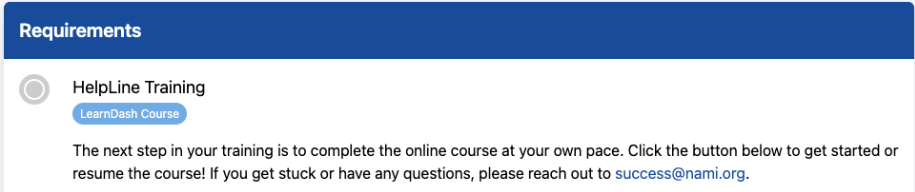
Requirements are sequential and will not allow you to jump ahead or complete tasks out of order. You will get an email for each step you complete with a direct link to the requirement page. Your referrer will also get email updates as you progress.
Completing the Requirements
Please note that requirements vary and will adapt based on the certification. Not all of the requirements listed here apply to every certification, but this section outlines the ones you may see.
Qualifications Form
If your certification requires a Qualifications Check, click “complete form” and then submit the statement, as shown in the two images below.
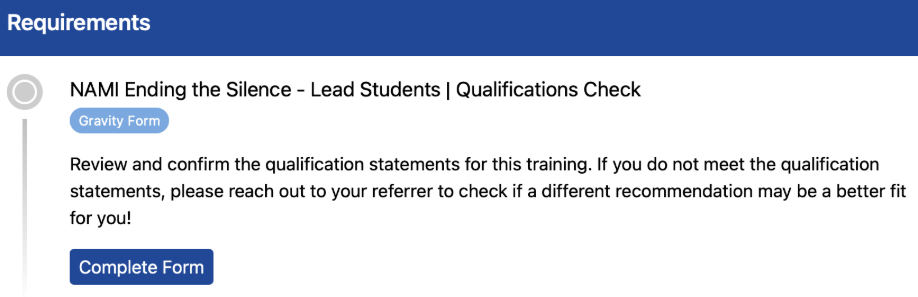

Once complete, the progress bar will update and the requirement section will reflect your progress with a green check, prompting you to move on to the next requirement.
Fidelity Agreement
If the online course for your certification requires a Fidelity Agreement, click “complete form” and then submit the Fidelity Agreement, as shown in the two images below.
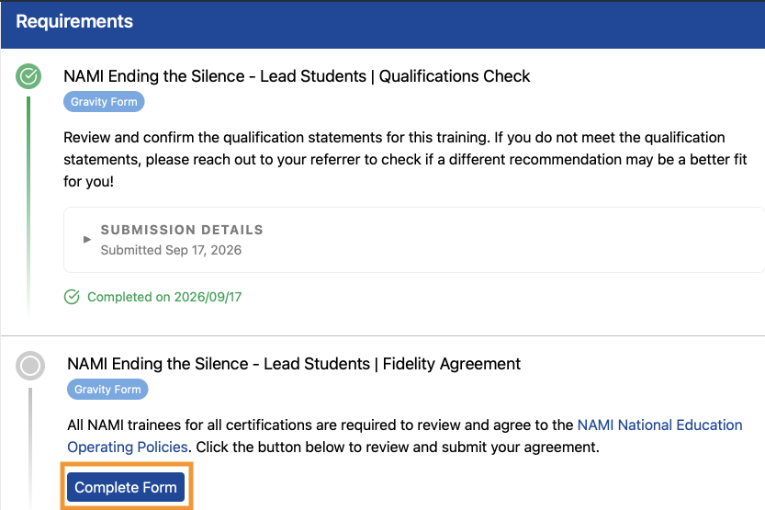
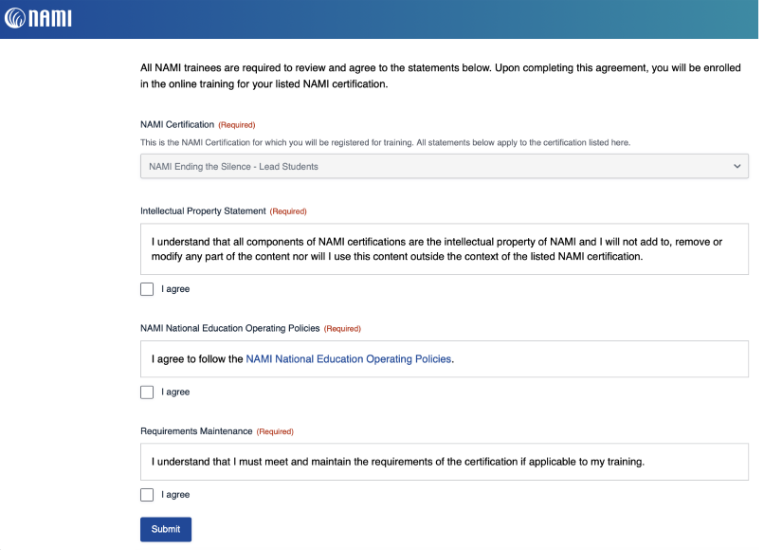
Start Online Training Course
You can click on "Go to Course" to begin your course in the Learning Portal. This will take you directly to the course.
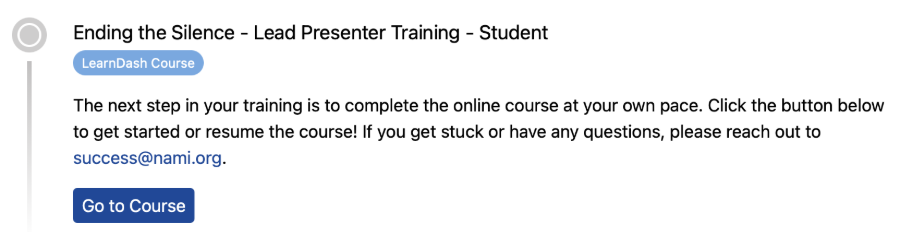
Alternatively, you can also access the course manually by logging in at my.nami.org and choosing the “Learning” Portal from the myNAMI menu. The courses assigned are listed under the “My Courses” tab in the Learning Portal.
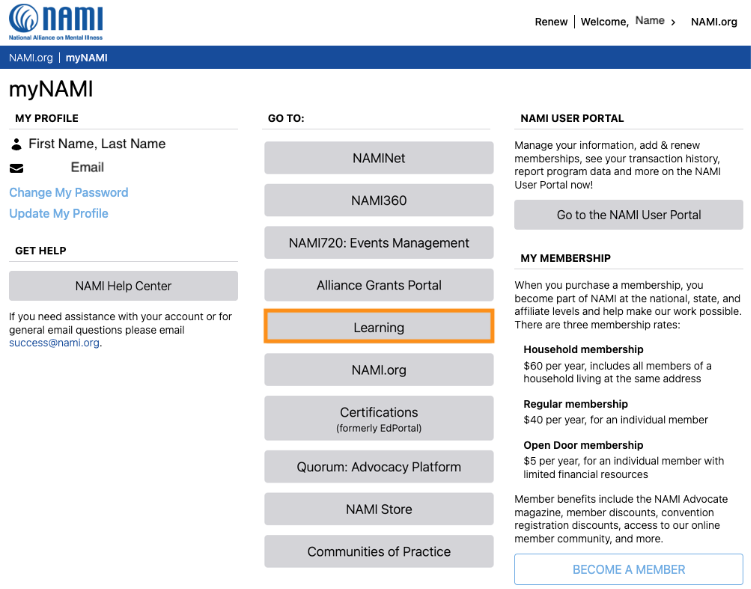

Click on the course title to start the course or continue your progress. You may see other courses you have been recommended for, which you can revisit as you please.

You can pause your course progress whenever you need and access the course again at a later time. You can either access the course by logging into my.nami.org and navigating to your recommendation details through the Certification Portal or by going to the Learning Portal.
Start Live Training
If a Live Training is a requirement for a certification, you will see this information below:
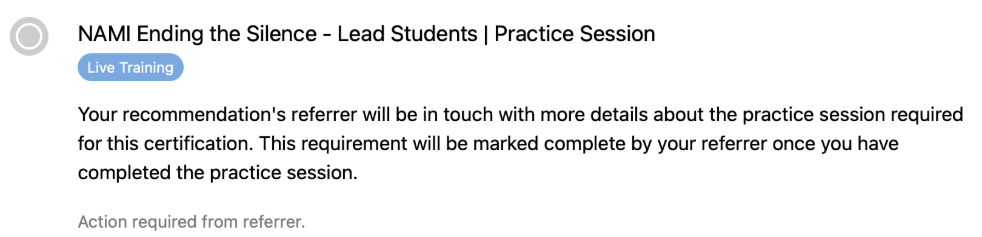
This is the one step you as the candidate cannot complete yourself. This is where your Referrer will be in touch with the details about how to complete your live training/practice session.
What’s Next: Your Certification
With the last requirement marked as complete, the recommendation is Complete. This is reflected in the recommendation status bar on the Recommendations page.
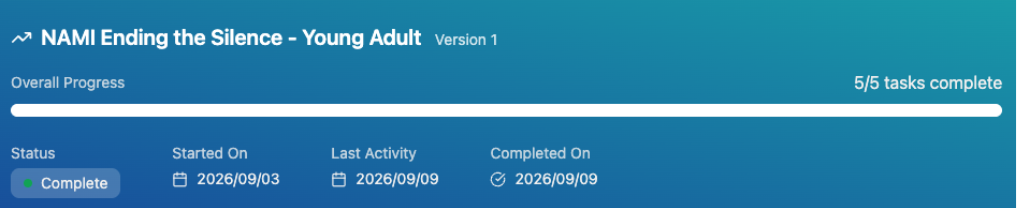
Additionally, the My Certifications page will also reflect this by listing the completed certification.
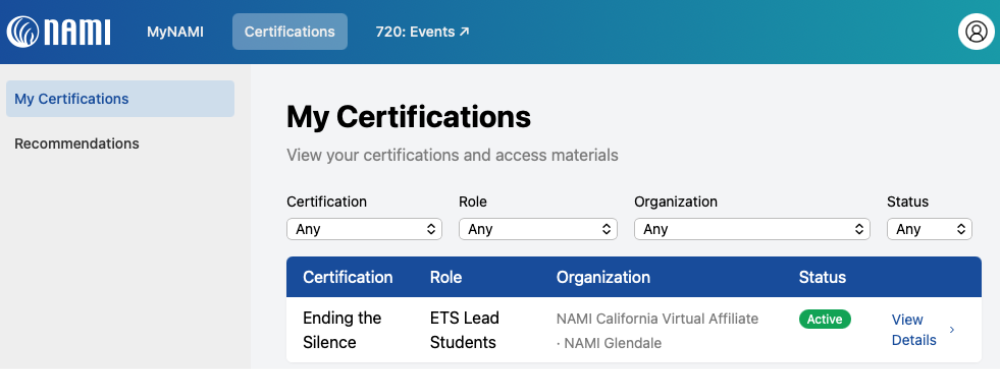
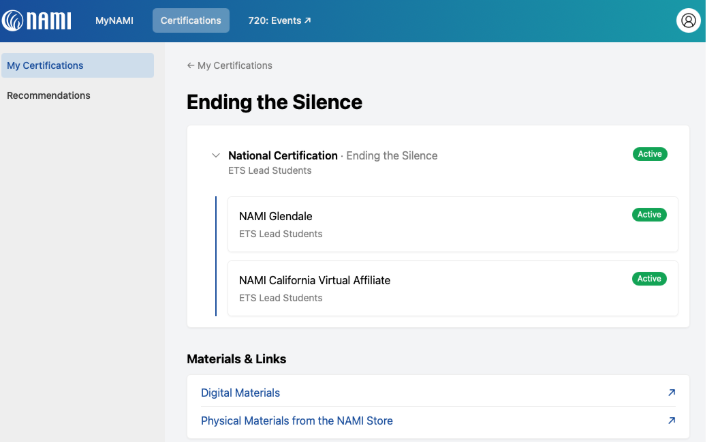
When you click on “view details,” you will see your certification records along with links related to this NAMI program certification. Click here to learn how to navigate your certifications.