
Recommendation Error and Redirect Guide
This article will provide an overview of the possible errors or redirections to alternative paths you might encounter when creating a recommendation in the Certification Portal.
|
How error/redirection appears |
When it occurs |
This means |
|
Grey text on program names and people affiliated with your organization |
Stops you in the middle of a recommendation: when selecting a sponsor and selecting a candidate from your organization’s roster |
Selecting this option is not available, context will be provided as to why in the information icon |
|
Red message box |
Stops you from submitting: On the review page of creating a recommendation |
You can’t move forward with this recommendation, and nothing will be created. You will not be able to click the submit button, and you need to go back to make alternative selections if you wish to submit it. |
|
Blue message box |
Stops you from submitting: On the review page of creating a recommendation |
There is an alternative path to take that doesn’t require completing the recommendation. The alternative option will be presented as a clickable button replacing the “Submit” button |
In this Article
Being stopped in the middle of creating a recommendation
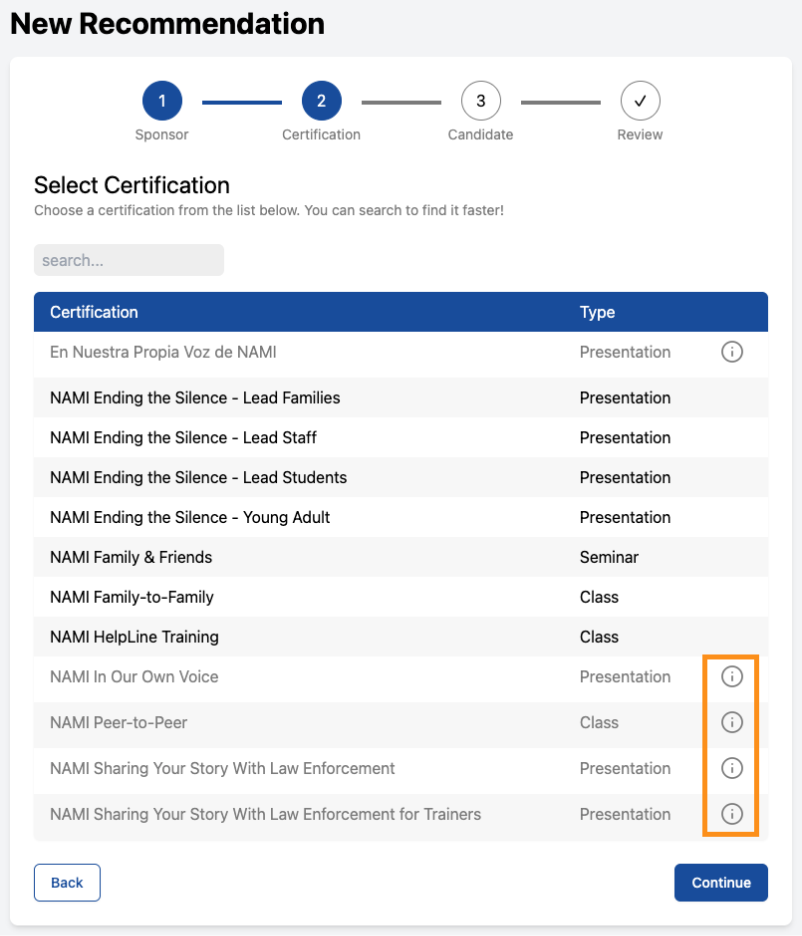
A certification you expected is greyed out
Causes
- Your affiliate/state organization does not have that program approved to sponsor recommendations. You can also click on the info icon next to the program that will explain the specific circumstances and who to reach out to for more information (orange box) or
- (Less likely) National staff have not turned that certification on for new recommendations yet
How to Resolve
Reach out to your State Organization or NAMI National to authorize the certification at your organization and add the necessary permissions in the National Database.
If ALL certifications are greyed out
Cause
- State Organizations can't be selected as the sponsor for program leader recommendations (program leader certification for In Your Own Voice, Ending the Silence etc.). Only state-level certifications will allow for a non-affiliate sponsor (state trainer for any program).
How to Resolve
- Select an affiliate your State Organization has authority over as the sponsor OR
- Select your state's Virtual Affiliate as the sponsor
Is a certification missing from the list entirely? Then it hasn't been set up in the certification portal by NAMI National yet. Reach out to succes@nami.org or your program contact if you have questions about the certification being used in the certification portal.
The candidate you want to select is greyed out in the candidate list
Cause
Because of the way people’s contact information was historically added in NAMI 360, users may or may not have an email associated with their name or a myNAMI account if they are already listed. They may also have multiple versions of themselves in the NAMI database.
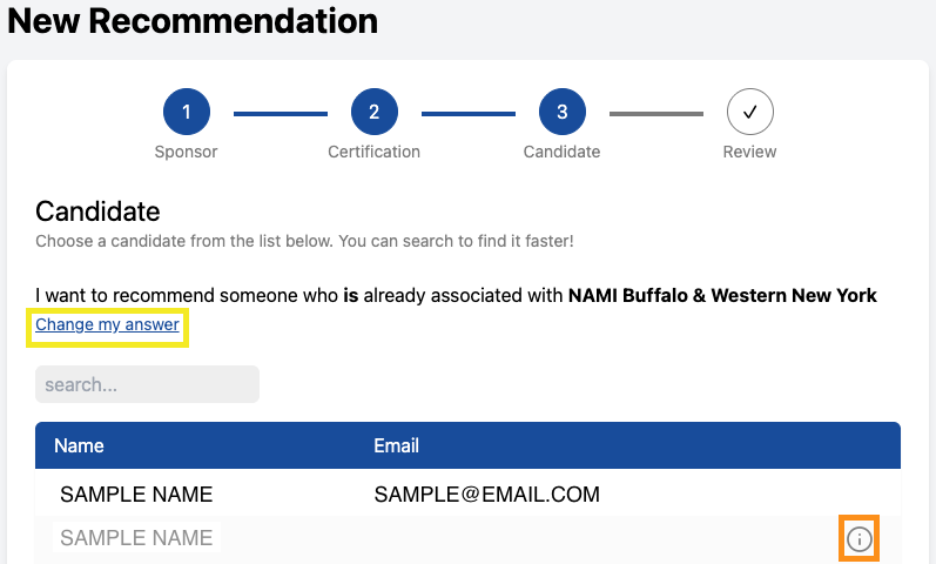
People listed in gray with a ⓘ icon instead of an email address don’t have one. Without an email, the portal can't automatically send the recommendation. This may mean the candidate does not have a myNAMI account with an affiliation record linked to your organization.
How to Resolve
Click “Change my answer” (yellow box in image above) to take you back to the previous page in the recommendation. Enter the candidate’s email manually. This invites them to create an account and/or become affiliated with your organization within the process of completing a recommendation
NAMI 360 admins no longer have to add a new “contact record” manually in NAMI 360 because an invite someone accepts does this for you. This article shows how admins were previously instructed to create an account for new members joining their organization. You can add new people to be affiliated with your organization by sending them an invite if they will not be training for certifications or just start by submitting them for a recommendation if they also want to be trained to lead NAMI Signature Programs.
Being stopped from submitting a recommendation: error messages and alternative paths
After clicking Submit, the Certification Portal looks up the candidate's email in NAMI’s database for potential reasons it can’t or shouldn’t submit the recommendation for you.
National certification deactivated
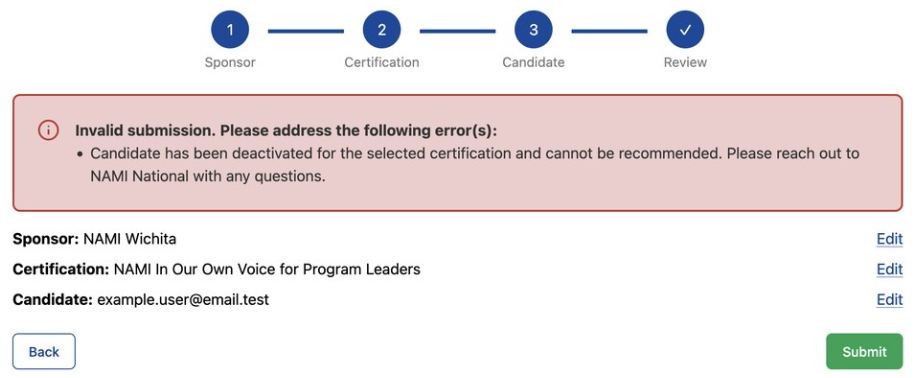
Cause: The candidate was already certified, but their national record for this certification that allows them to conduct programs has been deactivated.
How to Resolve: Nothing in the Certification Portal will move this forward. Reach out NAMI National to inquire on the certification status of the candidate at the national level.
Already certified
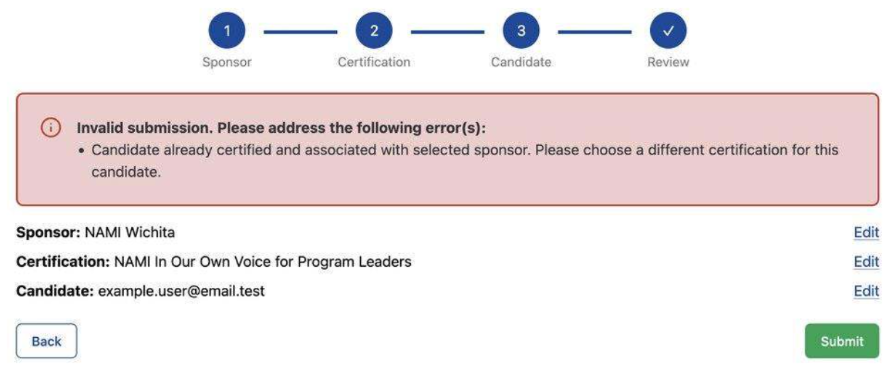
Cause: The candidate you selected already has this certification and an affiliation record with you, so there is nothing new to grant based on your selections.
How to Resolve: Use “Edit” to pick a different certification, or a different candidate. Or exit out of the page entirely to no longer continue creating this recommendation.
- If you expected them not to be certified, check their records in the Manage Certifications page for what's on their record as of this moment. Click here to learn how to use the Manage Certifications page, formerly known as credentialing.
Certified nationally, but no affiliation record
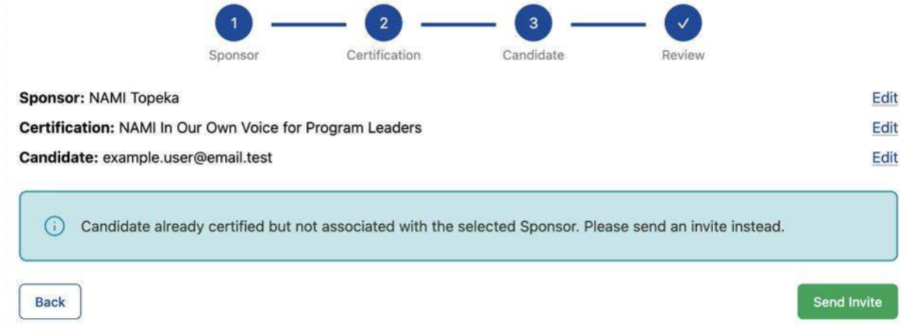
Cause: The candidate already holds the national certification for the program you selected, so they don't need the training again. What's missing is an affiliation record linking them to your organization.
How to Resolve: Click Send Invite.
- Because they're already certified nationally, accepting the invite both connects their account to your organization and issues the candidate's local certification record. There are no additional requirements the candidate has to complete to get this second half of the certification to conduct this program at your location. They are certified and ready to lead this program.
- The invite that goes out is the same as if you sent an affiliation invite instead of a recommendation. Click here to learn about sending invites and what it entails.
Certified and affiliated, but missing a local certification
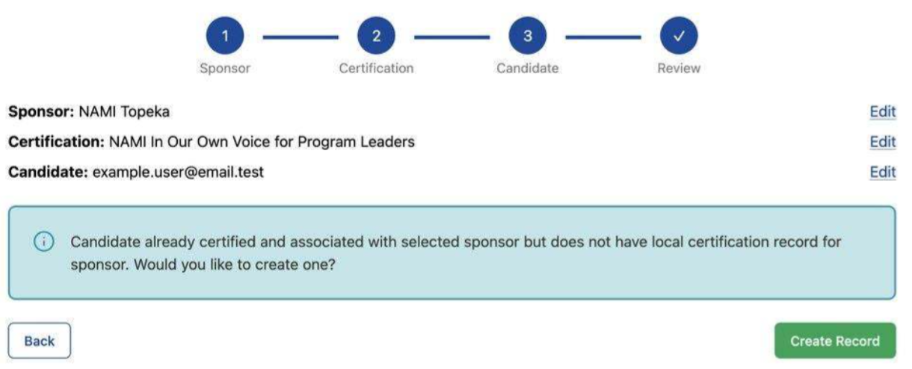
Cause: The candidate already holds the national certification for the program you selected and is affiliated with your organization, but the local certification record is not present in their account.
How to Resolve: Click Create Record.
- When you click create record, the Certification Portal creates the local certification record for you. There is no invite necessary and no new requirements for the candidate to complete. They are certified and ready to lead this program.
Certified nationally and affiliated, local certification exists but is deactivated
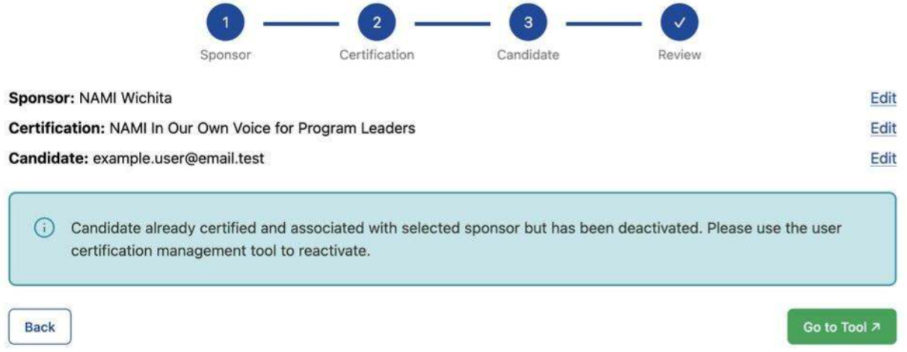
Cause: They have a local certification record with you, but it's switched off. Creating a second record would leave you with duplicates, so the system sends you to the tool that flips the existing one back on.
How to Resolve: Click Go to Tool which is the same as the website that was formerly known as credentialing used by NAMI 360 admins to deactivate and reactive local certifications. Click here to learn how to use the Manage Certifications page.
Note: A deactivated local certification you can fix yourself and is a blue redirect message. A deactivated national certification needs NAMI National intervention.
Rarer messages
|
Message |
Issue |
Next Steps |
|
“You do not have permissions to create recommendations for this sponsor” |
Your account isn’t allowed to create recommendations for that sponsor |
Reach out to Admins at your affiliate or state organization. They can reach out to success@nami.org |
|
“More than one auth model user found for candidate email …” or “Unknown error - requires manual intervention” |
The candidate’s email is linked to multiple user records, so the system can’t tell which person to use. |
Report the email addresses and names to success@nami.org and CC the candidate. They can handle duplicate accounts and will need to follow up with the candidate about next steps. |
“Recommendation Merged” after candidate changes email address
The candidate is correctly certified with your organization. A merged recommendation is expected and does not mean anything went wrong, even if you don’t see the usual completion of all requirements.
Cause: The candidate used a different email address than the one a Referrer used in their recommendation, and it turns out candidate is already certified through that other account. NAMI National/Certification Portal automatically handles the backend updates needed to resolve the duplicate or conflicting recommendation.
How to Resolve: You do not need to do anything. The system will connect the recommendation to the candidate’s existing account, add or update the organization’s certification record as needed, and mark the recommendation as merged. The recommendation is essentially completed. You as the Referrer receive a “Recommendation Merged” email confirming this.