
Recommendation Reporting
The Certifications Portal (formerly Education Portal) is the new recommendation system that has improved capabilities of tracking recommendation data through the Reports page. This page is limited to those with certain affiliation records, which also determines to which organization's data a person has access. Click here to learn more about Certification Access Levels.
In this Article
Navigating the Reports Page
When opening the Certification Portal, you will land on the Recommendations page. On the left-hand menu, click on Reports. Here is a breakdown of what is on the page:
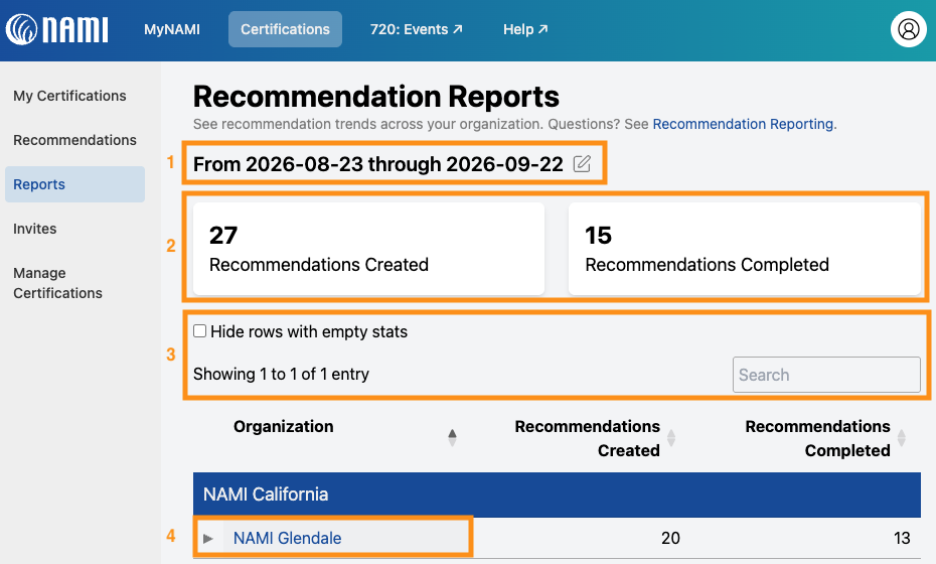
- The data the Certification Portal pulls up is dependent on the date range. This will automatically be set for the last 30 days and can be edited to any date range you are interested in.
- The two primary metrics the page calculates are based on the date range entered and which organizations you are affiliated with.
- Filters to narrow down the data you are viewing are in the table portion of the page.
- This table will show all organizations you are affiliated with. A single organization is highlighted in a box, and you can see its contribution to the metrics. Clicking the triangle will breakdown each metric by certification.
Generating a Report
When you first open the Reports page, the whole page is the report and is not exportable. It's automatically set to produce data from the last 30 days and lists how each organization you are affiliated with contributes to the metrics.
Update the date range
Next to the heading “From (Date) through (Date)” click on the pencil icon. Then, update the the start and end dates you are interested in by clicking on the calendar icons (orange boxes below). Click Go to generate the report. This will refresh the page.

The date range will remain the same no matter what you click on within the reports page, as long as you do not leave the Reports page by closing the window or going to a different page in the Certification Portal.
An empty report where all metrics and rows in the table are 0: the report is working but nothing was created or completed in that date range you selected. Update the date range or check "Hide rows with empty stats" to confirm if there's genuinely nothing there.
What data is collected
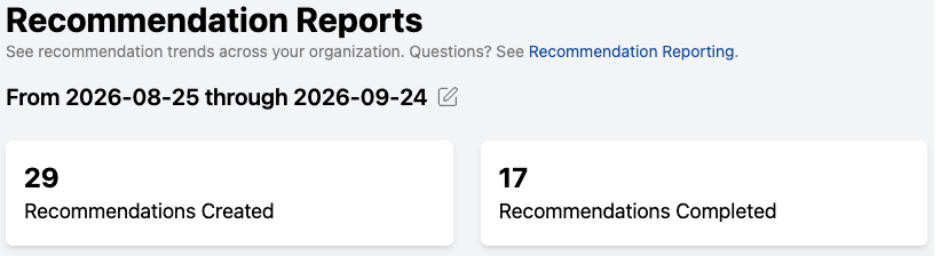
The Reports page will highlight two main metrics after you input your desired date range.
| Metric | What it means | What recommendations it counts |
| Recommendations Created | All that were submitted by a referrer. |
Includes every submission, even ones later cancelled or rejected, and ones still waiting on the candidate. Based on when a Referrer originally submitted the recommendation. |
| Recommendations Completed | All that were completed by candidates that led to a certification being created. This is the number of certified leaders added to your organization. | Based on when the last requirement of the recommendation was marked as complete. |
Things to note:
- The metrics at the top of the page are aggregate measures for ALL organizations that you have access to see. Read the later sections to filter metrics for the specific organization(s) you want to review.
- One recommendation can be counted twice: Once in each metric if it was both created and finished inside the same range.
- Completions can outnumber creations: A recommendation created last year but finished this week still counts as completed this week. That's why a one-month report can show more completions than creations.
Whose data is represented
In the data table produced after you have set your desired data range, you will only see the organization(s) you have an affiliation record with.
| Number of organizations you are affiliated with | Organizations that'll appear in the Reports page |
| A single affiliate | Only that affiliate |
| Several affiliates | Each affiliate |
| State Organization | The organization itself and each affiliate it governs |
If there is an affiliate missing that you should be able to see, please reach out to success@nami.org and CC staff at that affiliate.
Single Affiliate Report
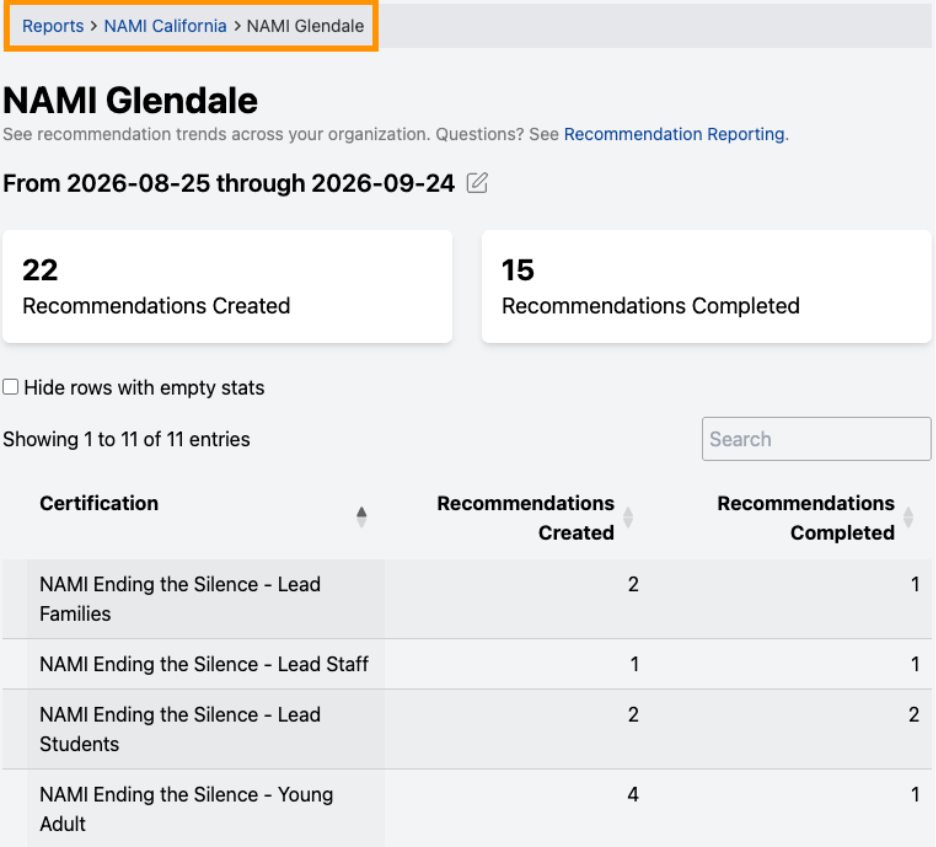
In the table, there will be one row per organization, and they will be organized by state under the blue heading listing. When you click on the small triangle left of an organization’s name (orange box below), the organization’s data will appear under it. This data is broken up by program to show how the total was calculated.
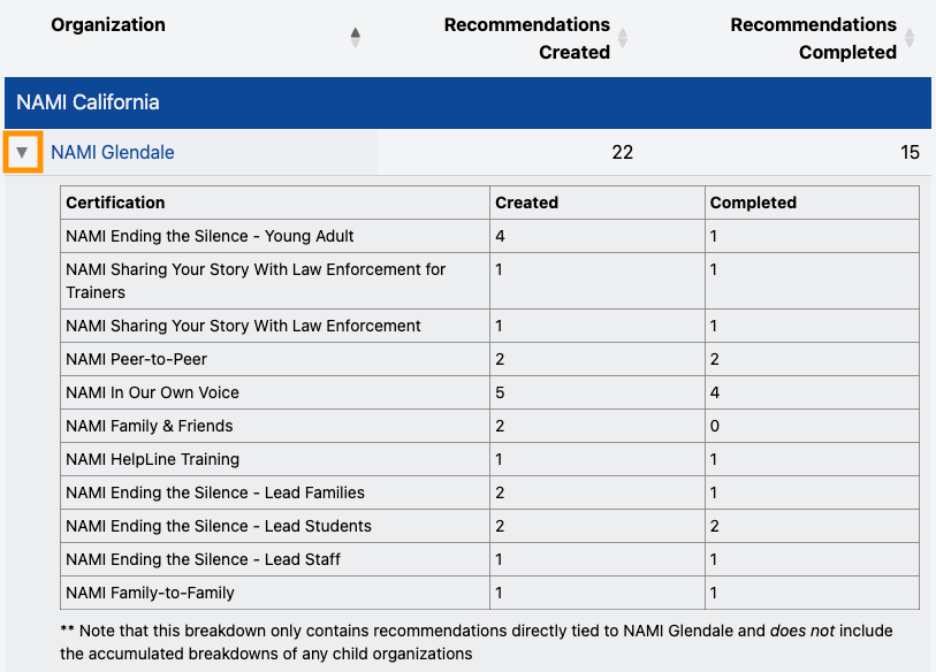
If you click on the organization’s name instead of the triangle, the page will refresh with only that organization’s data (if it is an affiliate without other organizations it governs). This is the same information clicking the triangle produces, just formatted as the entirety of the page.
You can use the search bar to filter for specific certification entries. The breadcrumb trail links at the top show you the affiliate in relation to its State Organization and the general report. Click to go back to the general Reports page (orange box). The date range will remain the same.
State Organization/Multiple Affiliates Report
In the table, there will be one row per organization, and they will be organized by state under the blue heading listing.
- If you have an affiliation to multiple affiliates (excluding a state organization), you will see each of them in the Reports page. Click on the organization link to view each separate report.
- If you have an affiliation to a State Organization (or an affiliate that acts like one), you will see the data for it (with a "State Org" label) and all the affiliates it governs.
Individual State Organization View
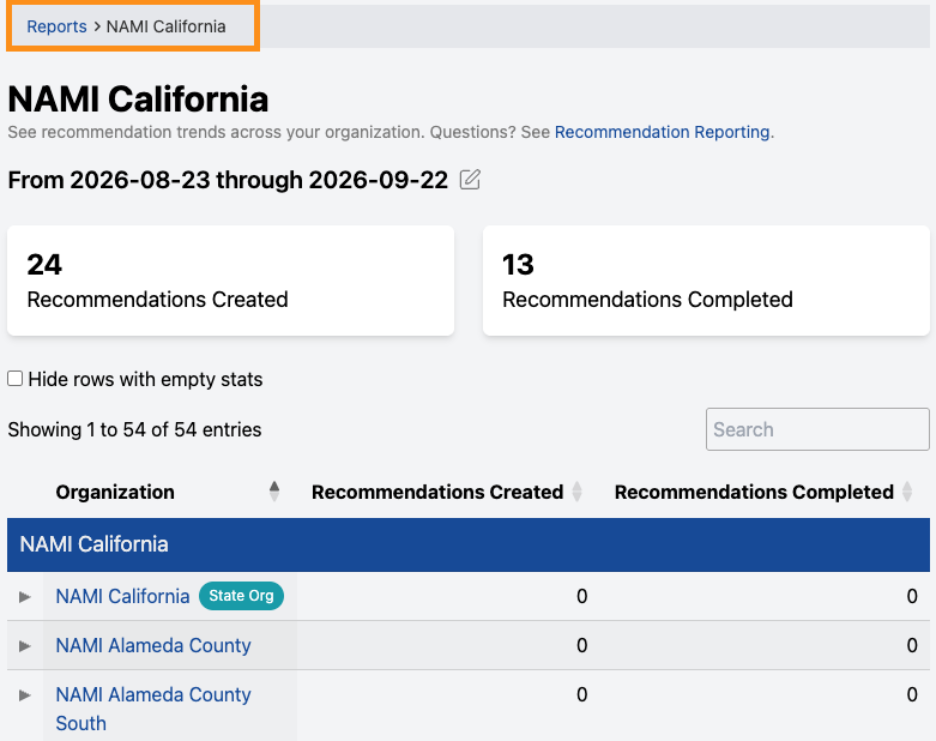
To view the data associated with just the State Organization, only click the triangle to show its data within the table. If you click the State Organization's name link, this does NOT refresh the page in the same way clicking an affiliate name link does. The page reloads to a slightly modified version of the original Reports page to show all of the state's affiliates. You can click on the breadcrumb links at the top of the page to return to the general report view. The date range will not be affected.
Hiding affiliates with no data
Click “Hide rows with empty stats” (highlighted in an orange box below) to narrow the affiliates listed without recommendations that contribute to the wholistic metrics. This toggle does not change the report's metrics and can be used at any time.
