
Managing Certifications (Formerly Credentialing)
The Manage Certifications tool allows you to manage certifications for your organization in the Certification Portal. Previously managed through NAMI 720 credentialing, certification management is now available directly within the Certification Portal, including additional tools for viewing and maintaining certification records. Only Alliance Staff with the highest administrative access level can view and work with this tool.
In this guide, you'll learn how to activate and deactivate certifications, understand certification statuses, and manage existing certification records.
In this article
What is this tool?
A certification is NAMI's official approval for someone to perform a specific role, such as leading a program or providing a service. The Manage Certifications tool allows you to view and manage your organization(s) certifications and their components after they have been issued. This includes:
- Pausing someone's certification so they stop being listed as a leader for events in NAMI720
- Restoring the certification when and if they return
- Viewing every certification a single person holds and where the certification is valid
A complete Certification is made up of 2 components: National and Local Certifications. In this tool, you are only seeing the statuses of Local Certifications from your organization, not these people's National Certifications. Click here to learn about the components of a certification
Why ‘Pausing’ matters
Only Active certifications make a person available for selection as a leader in NAMI720 and allows them to access all program resources in NAMINet. If someone is taking a break, is no longer serving in that role, or should not currently be assigned to events, you can pause their certification. This removes them from leader selection lists while preserving their certification record and history. NAMI National does NOT delete certifications from the national database.
Not looking to manage certifications? Click the following links to:
- Certify someone new by creating a recommendation
- Add someone to your organization with no training involved by sending an invite
- View reporting data on total recommendations and/or certifications completed over a date range
- Review your own certifications and materials
Who Can View and Manage Certifications?
- Those affiliated with a single Affiliate can only view and edit that organization's certifications
- If someone has certifications with your affiliate and other organizations you do not have permission to see, you can't see that person's entire list of certifications
- State Organizations can manage certifications for their org and the affiliates it governs
- If someone is affiliated with multiple Affiliates, they can each organization
Click here to learn what permissions are required to manage certifications.
|
|
National Certification (leader designation) | Local Certification |
| Who can view certification for every individual in your organization(s) |
Alliance Staff Administrators and Referrers National Staff |
Alliance Staff Administrators and Referrers National Staff |
| Who can edit certification status | National Staff only |
Alliance Staff Administrators and Referrers National Staff |
The affiliate decides who leads its programs; National decides whether the person is certified at all. Because both levels play a role, a certification may sometimes be placed On Hold when additional review or action is needed before it can be fully active.
Navigating the page
After logging into certification portal, click on ‘Manage Certifications’ on the left-hand menu. Using the search bar, select which organization you would like to review. Only the State Organizations/Affiliate that you are authorized to view will be listed, organized by State under a blue heading. The ‘State Org’ badge marks a state organization’s own entry.
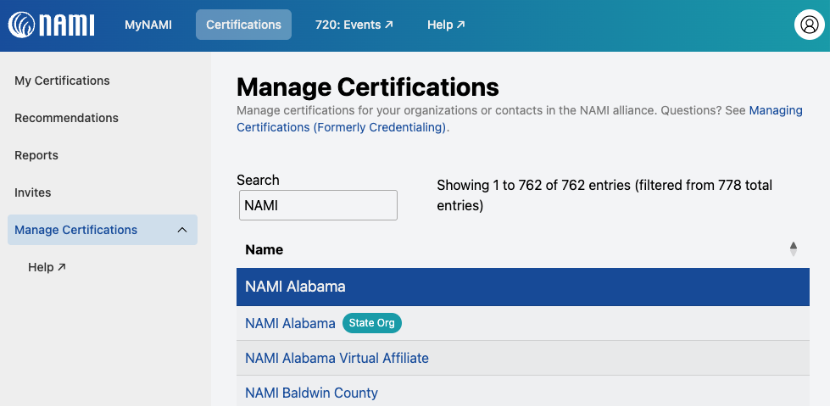
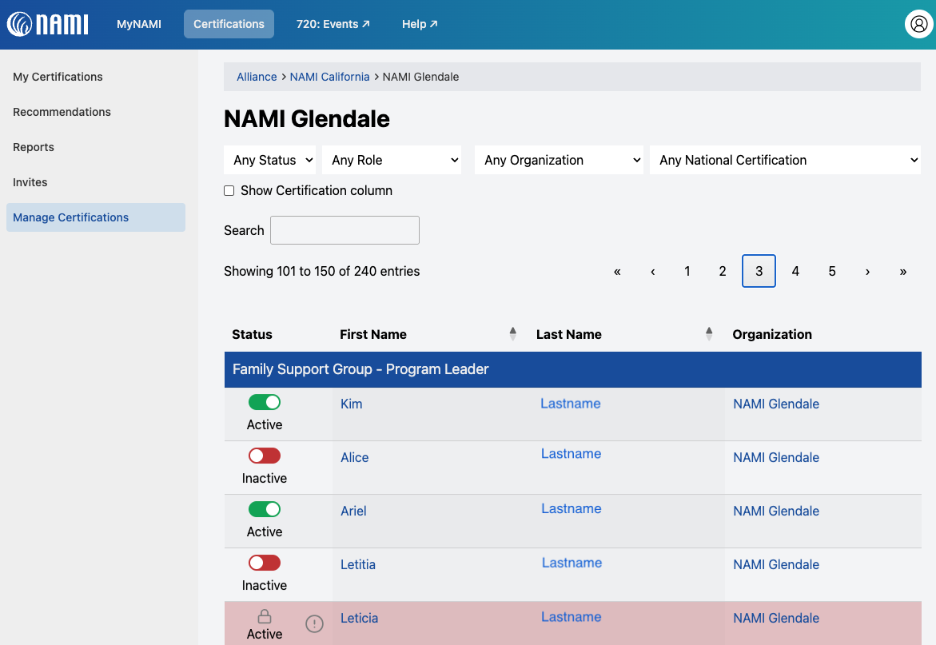
Selecting a State Org or an Affiliate will pull up the list of all certified individuals for that organization, organized by Certification name AND Role under a blue heading.
The image below is a breakdown of an organization's page:
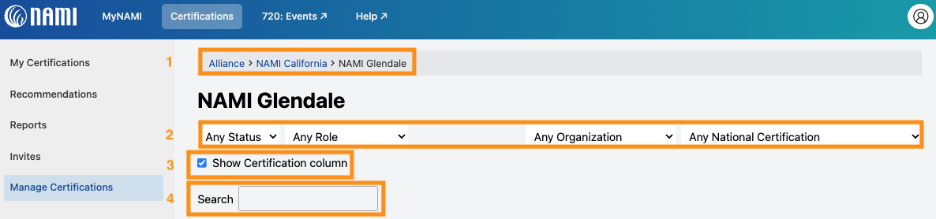
- Breadcrumb navigation appears. Use this feature to navigate back as needed.
- Use filters to narrow down records
|
Filter |
Use it to |
|
Any Status |
Show only those with one status: Active, Inactive, On Hold or Warning |
|
Any Role |
Narrow to a specific role: program leader, state trainer, etc. |
|
Any Organization |
With affiliate records included, pin the list to one affiliate. This is useful for checking a single affiliate from the State Organization's page. |
|
Any National Certification |
Narrow to one certification type |
|
Search |
Match any text on the table, including names. |
- Toggle “Show Certification column” to display the certification name (the NAMI Signature Program and the local certification record)
- Use the search bar to find a specific program or an individual's records.
Each row is one certification held by one person at one organization, not one row per person. Rows are grouped under blue bands naming the certification and the role. For example: Basics - State Trainer.
Viewing an individual’s records
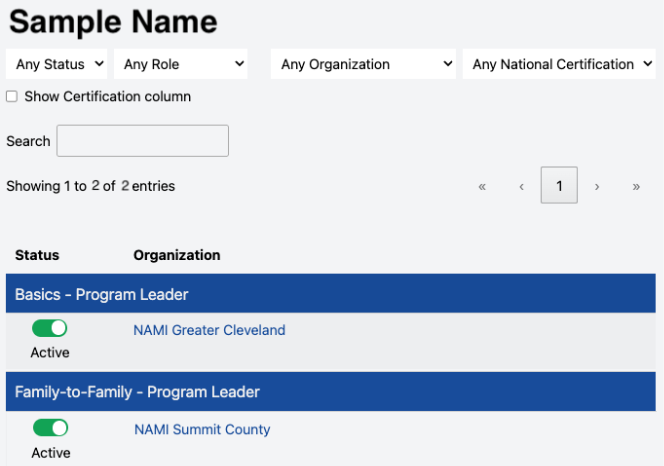
Clicking anyone's name from any list in this tool will open a page of every certification record they hold that you're authorized to see.
For State Organizations: Include local affiliate records
A state organization's page has an extra checkbox on the right: Include local affiliate records. Click to add every record from every affiliate beneath that state. An affiliate with no organizations beneath it won't see this filter.
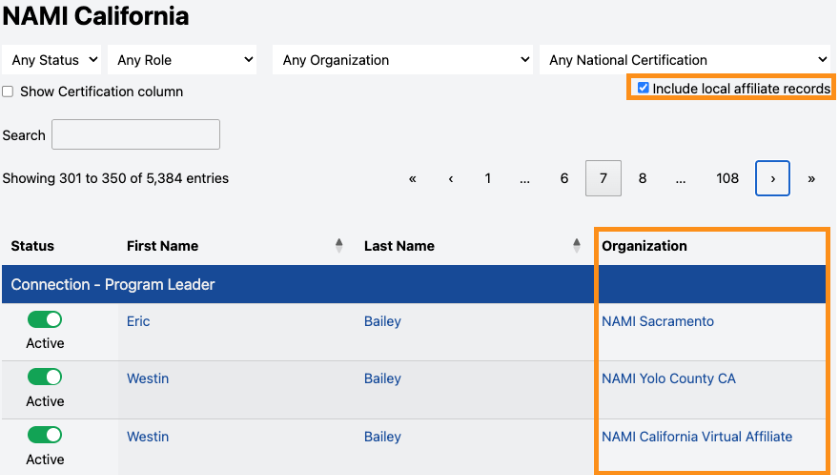
A state with many affiliates has a lot of records to gather, so the list can take a while to generate. Use filters and the search bar to make managing certifications easier.
Understanding Certification Statuses
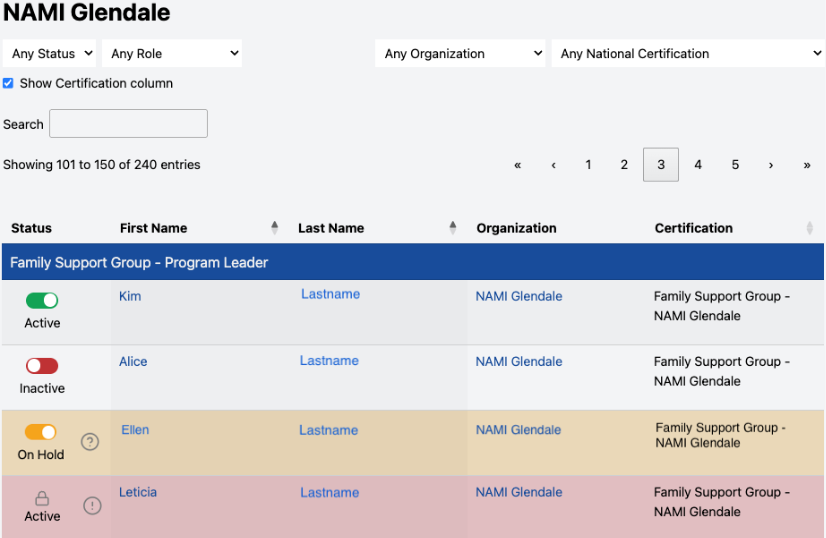
Every certification has a status that indicates whether the person can currently serve in that role and what actions can be taken on the certification. Each record is classified as one of four statuses. Review the later sections to resolve certifications with warning and on hold statues.
|
Status |
What it means for Entire Certification |
What it means for the National Certification (not visible in this tool) | What it means for the Local Certification |
|
Active |
Both the National Certification and Local Certification are enabled |
The record is live, their training is valid at the national level, they can potentially lead this program in this and other locations in the state, and they have have access the digital materials for it. |
The record is live and they can currently serve in this role for this program at this location and access the digital materials for it. They will be listed in NAMI720 |
|
Inactive |
The certification is off | The record can still be active because this person has completed the national level training. | The record is switched off; not eligible to serve in that role for this program at this location. They will not be listed in NAMI720 |
| Warning (red highlight with any status listed, lock icon instead of toggle) |
The certification cannot be updated until the underlying issue has been corrected. |
This record may have been set up improperly or changed in a way that makes it no longer function as it should. | This record may have been set up improperly or changed in a way that makes it no longer function as it should |
|
On Hold |
This certification is temporarily invalidated. |
National records are only Active or Inactive. | The record is active but can't be validated until the national certification is made active again. They shouldn't lead programming anywhere. They will not be listed in NAMI720 |
Toggling activity or turning a local certification on or off
You have the ability to toggle someone's local certification from Active to Inactive or vice versa. Being Inactive means the person is not eligible to serve in that role for your organization, regardless of their national certification status. Common reasons to make a certification inactive include is they:
- Are no longer leading that program.
- Left the organization.
- Requested to stop serving in the role.
Making a certification inactive does not delete the certification. The record remains in the system and can be reactivated later if needed and for record-keeping.
- Changes you make are saved immediately. There is no separate Save button.
- You may notice a brief delay while the change is processed.
- If the toggle takes a moment to update, wait for it to finish rather than clicking again.
- No certification records are deleted when a status is changed.
Resolving certifications that are highlighted in red and locked
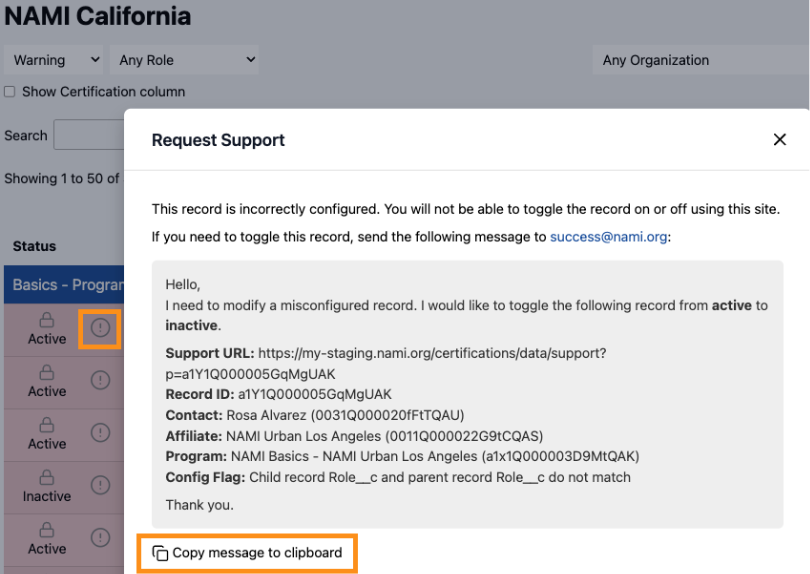
This the certification cannot be updated until the underlying issue has been corrected. The certification's displayed status may still show Active, Inactive, or On Hold, but the Warning state takes precedence until the record is repaired. Certifications in this state cannot be changed through the Manage Certifications tool. The issue must be reviewed and corrected by the Success Team at NAMI National. Clicking the lock icon opens a support request containing information about the certification record.
To resolve:
- Request support by copying the message (orange box above) and sending it to success@nami.org along with what status you would like the record to be set to once fixed.
- Tip: A Warning certification does not always require immediate action. If you do not need to make changes to the certification, no action is necessary. Contact the Success Team when you need the certification record updated or repaired.
Permission-Related Locks may show up as well
- In some cases, a lock icon appears because you do not have permission to manage that certification.
- If the certification belongs to an organization you do not manage, the system will indicate that you do not have permission to modify the record. In that situation, contact the organization that manages the certification or the Success Team for assistance.
Resolving certifications that are On Hold
An On Hold certification requires action from NAMI National before it can become Active. You will not be able to change an On Hold status because this means the local certification is active, but the person's national certification status is not currently active. As a result, the person cannot currently serve in that role. You could change change an On Hold certification to Inactive, but only NAMI National can restore it to Active.
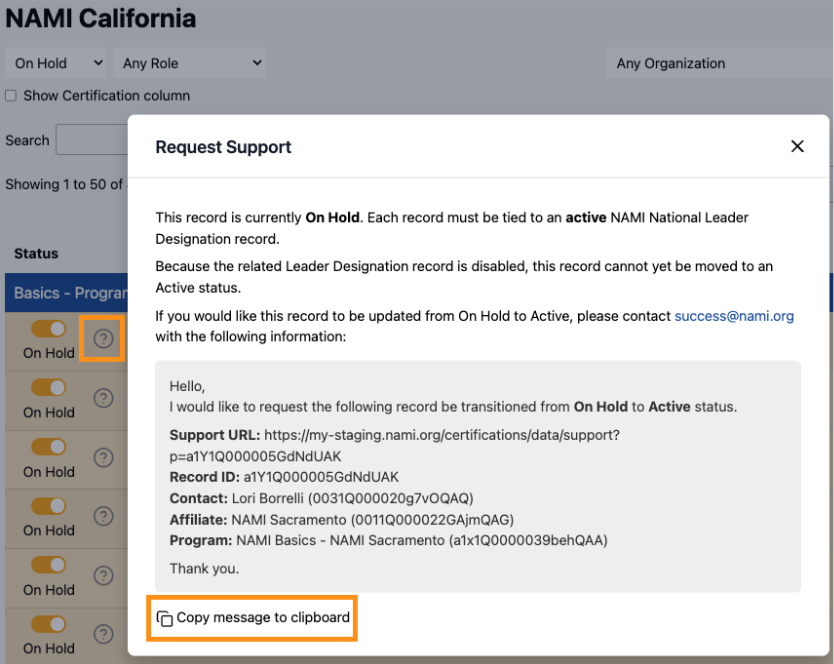
To resolve:
- Selecting the support icon opens a Request Support window with a pre-written message containing the information needed by the Success Team.
- Request support by copying the message (orange box above) and sending it to success@nami.org along with what status you would like the record to be set to once fixed.
- Once your request is received, the Success Team will review the certification and determine whether it can be returned to Active status.
Some certifications are intentionally On Hold. For example, a certification may be on hold due to a policy decision, a request from the individual, or other circumstances that require National review. Not every On Hold certification can be reactivated.